
EasyBooks how-to · about 1 minute
Upload several receipts at once, and review them in one table
Got a pile of receipts? Add them all in one go. Each one is read for you, then you check them together and save them in one click, each as its own expense with its own photo.
- Up to 20 photos at a time
- EasyBooks Receipts and every EasyBooks plan
- Phone or computer
Download the one-page guide (PDF) to print or keep.
Step by step
Open Log an Expense and tap Upload several receipts.
Pick up to 20 photos from your phone or computer.
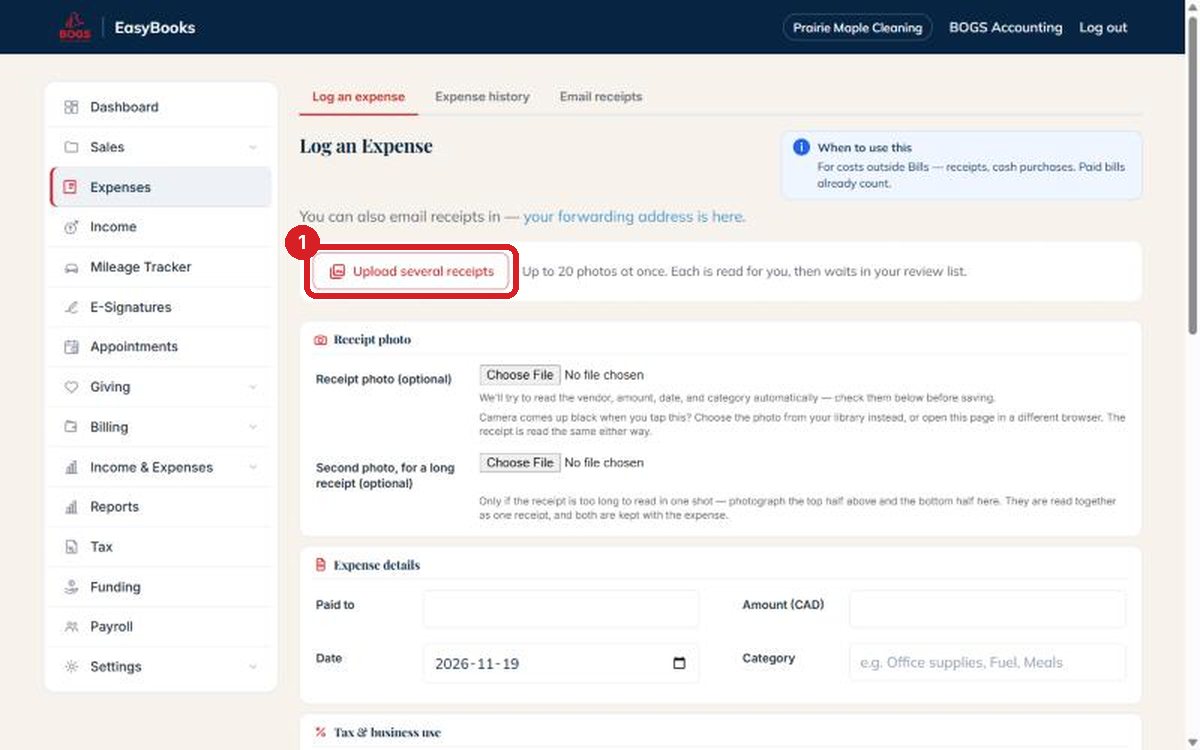
Each photo is read for you.
You can wait, or leave the page. Reading carries on.
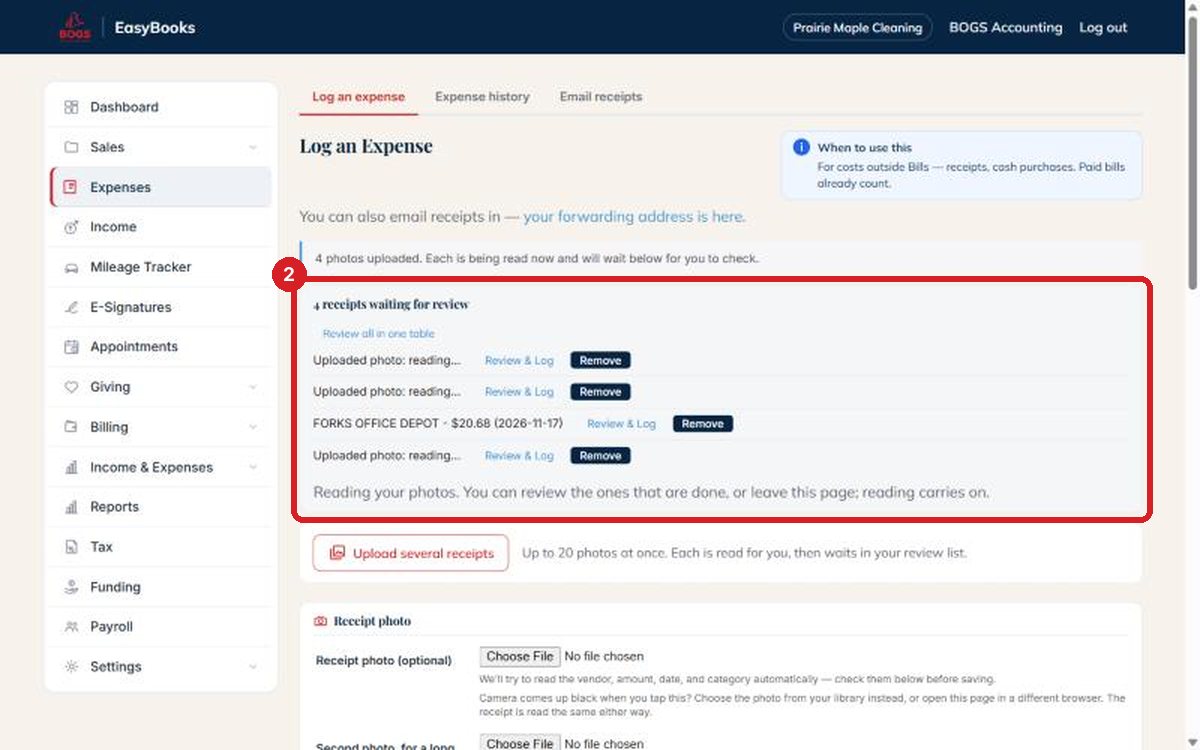
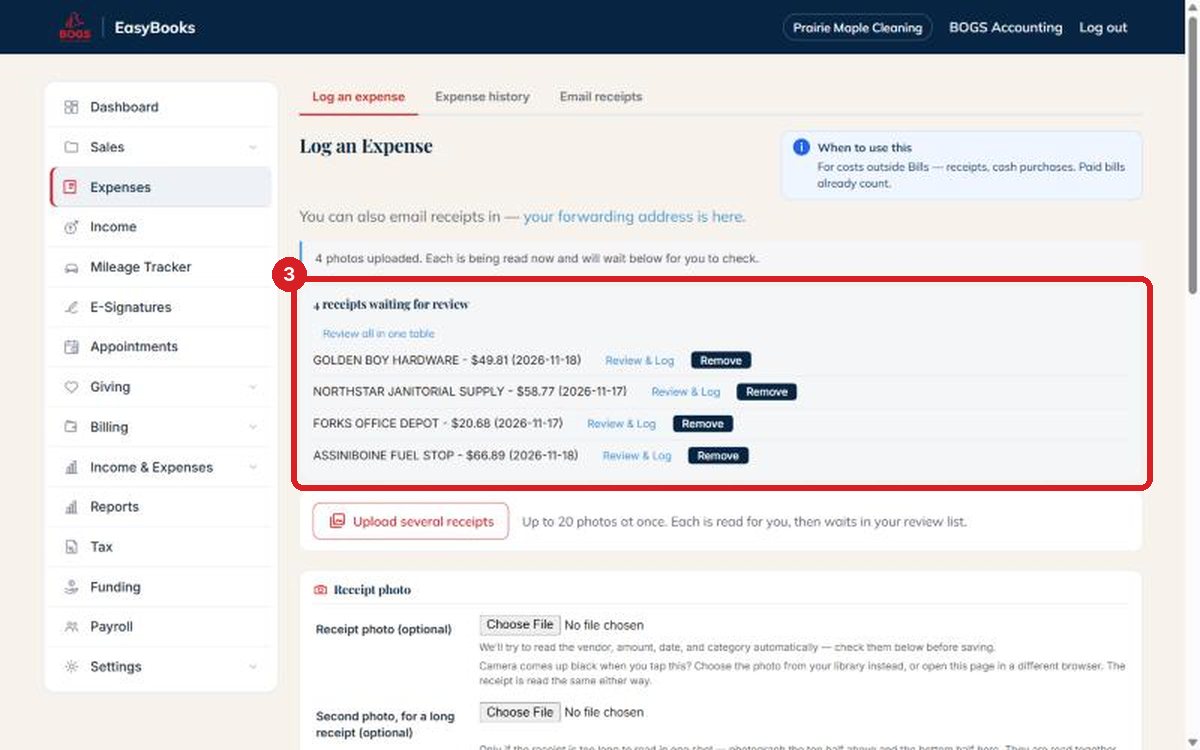
In seconds, each one shows the supplier, total and date.
Nothing is saved until you check it.
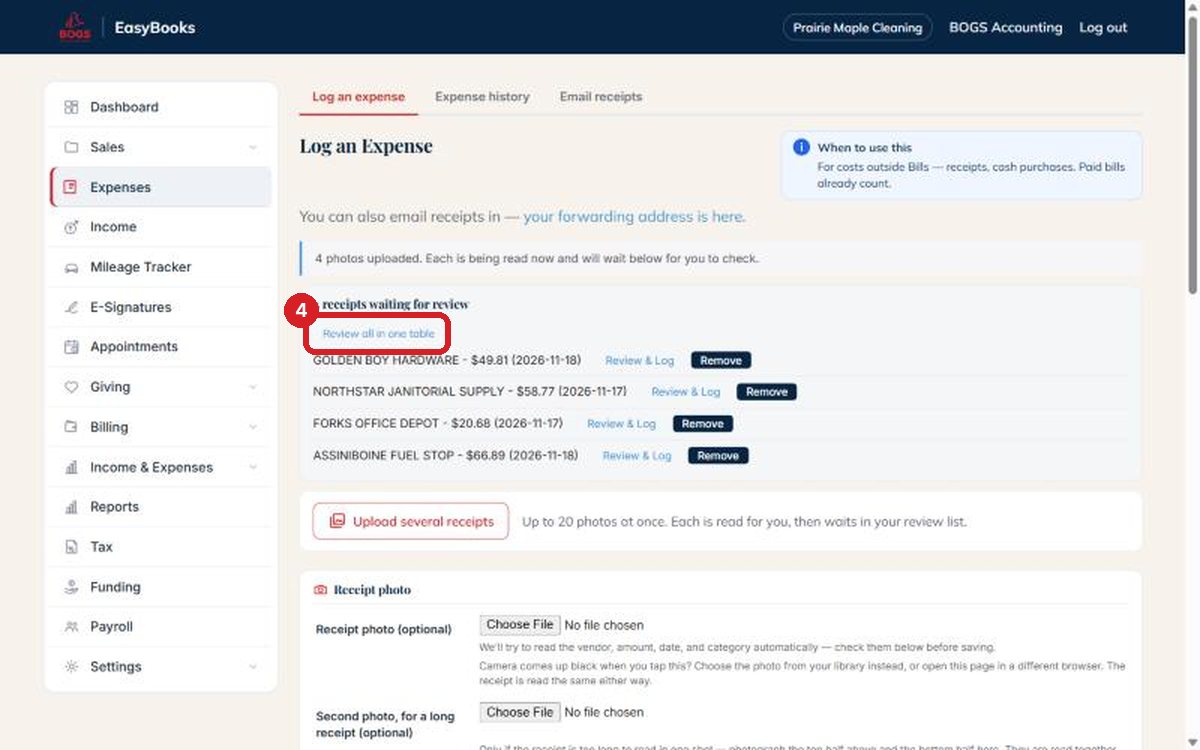
Tap Review all in one table.
To check them together instead of one by one.
Every receipt gets its own row.
Fix anything that was misread: supplier, date, amount, category, tax.
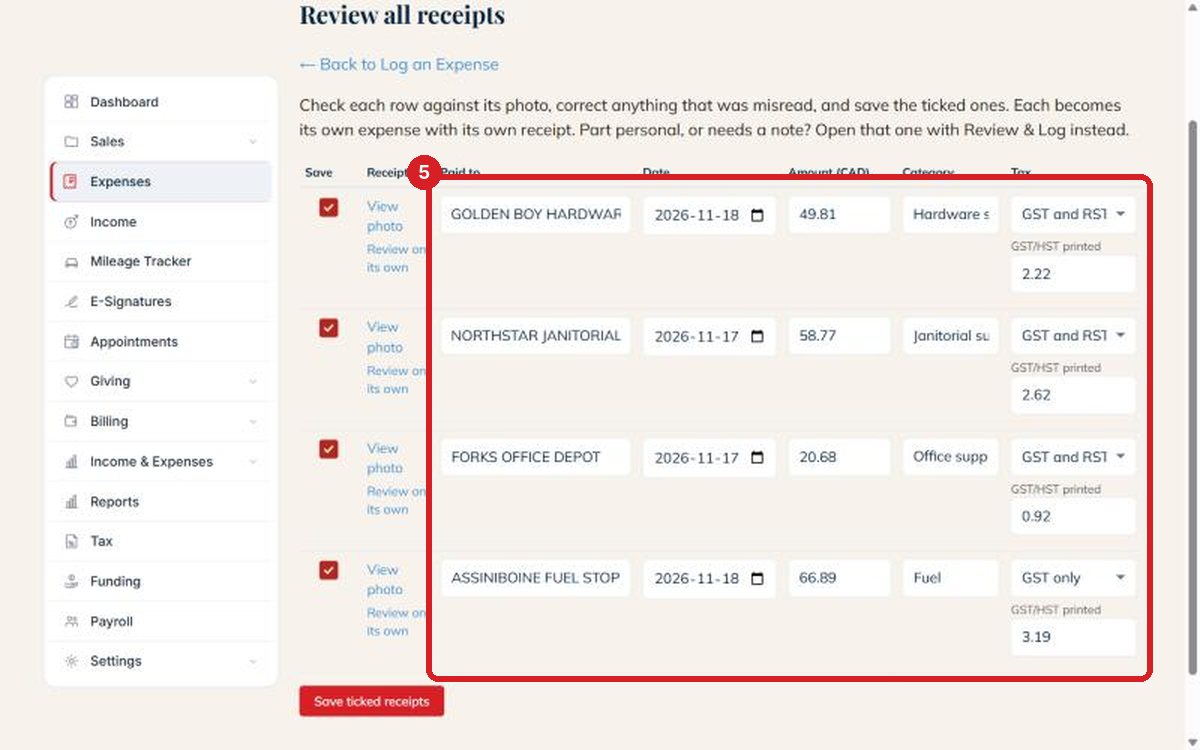
Untick any you want to look at on their own.
Or use Review on its own for one that needs a note or a split.
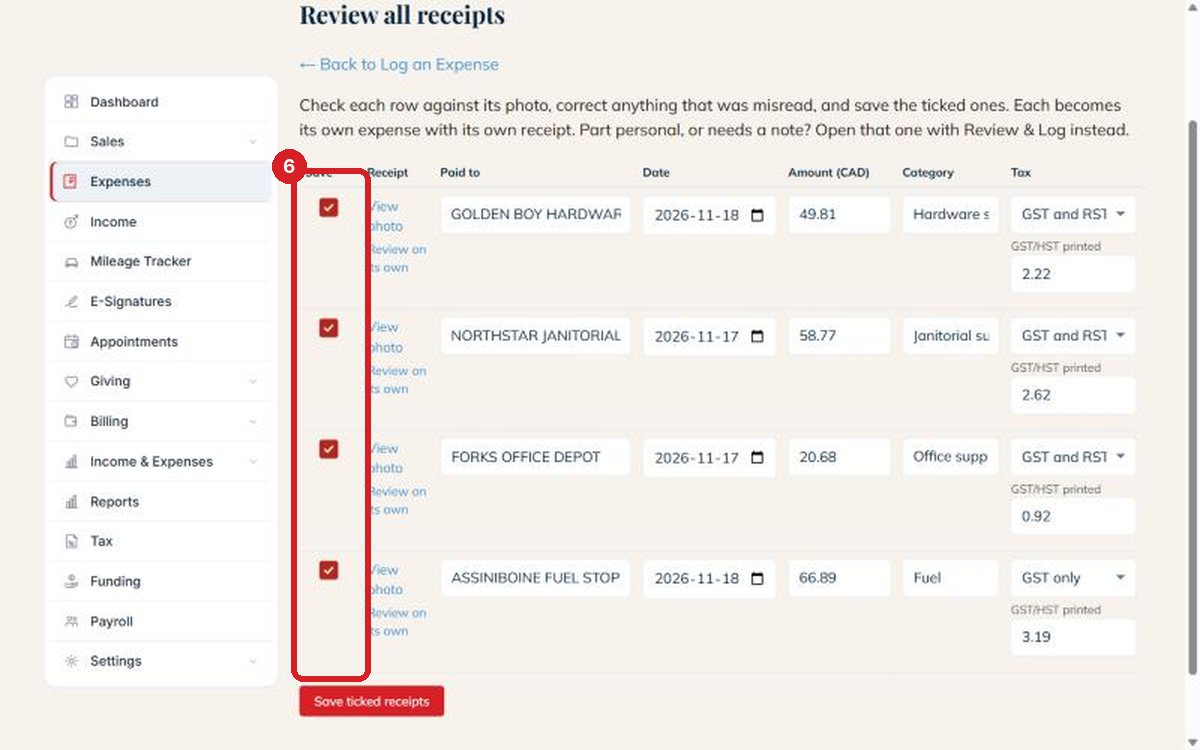
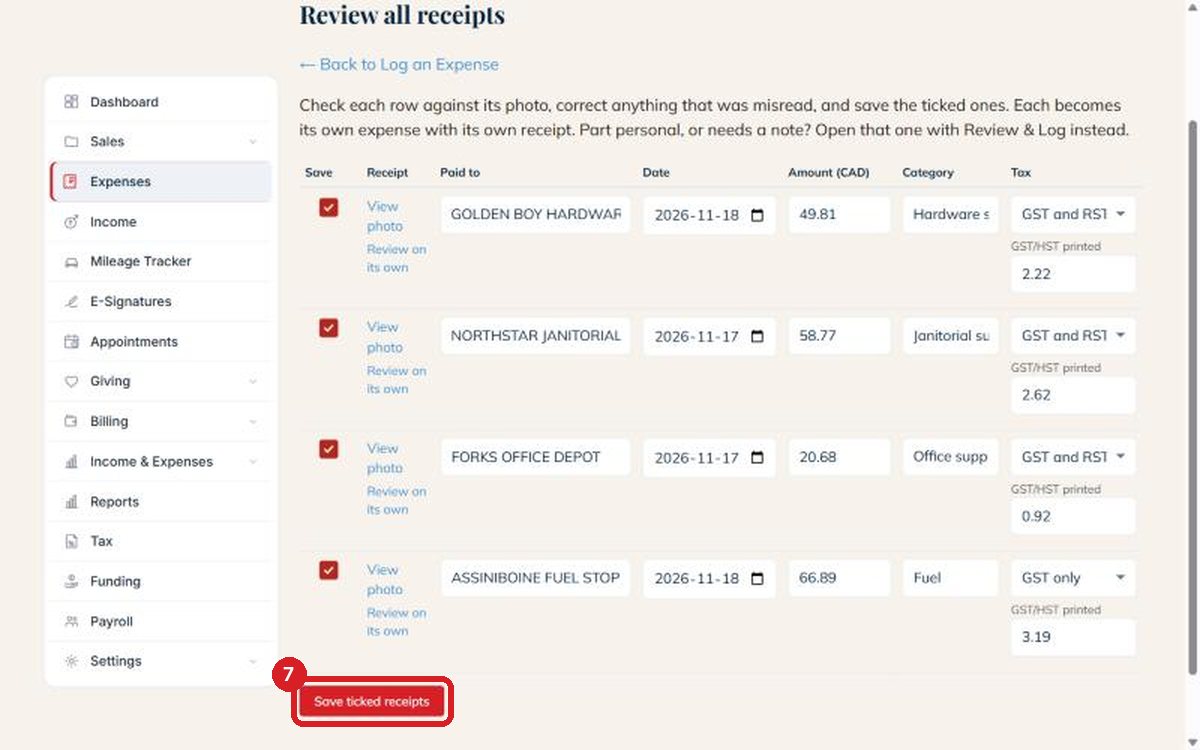
Tap Save ticked receipts.
Each one becomes its own expense, with its own photo.
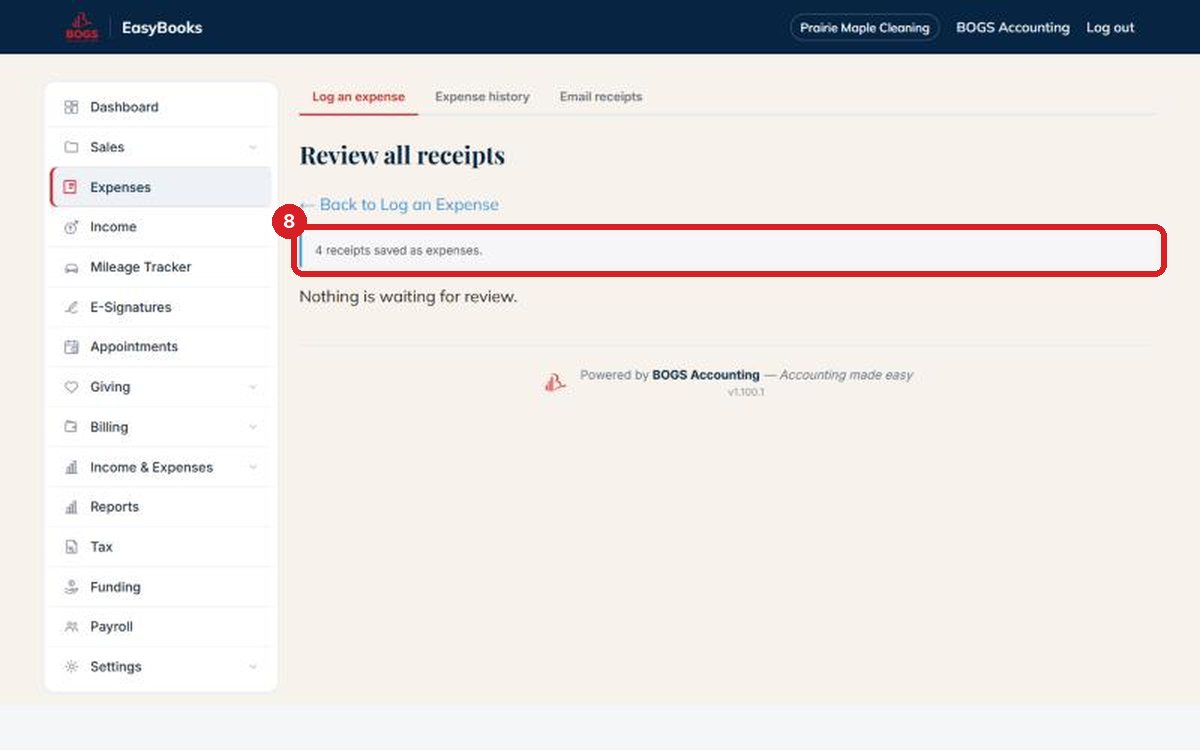
Done. All four are saved.
Likely duplicates are held back for you to check first.
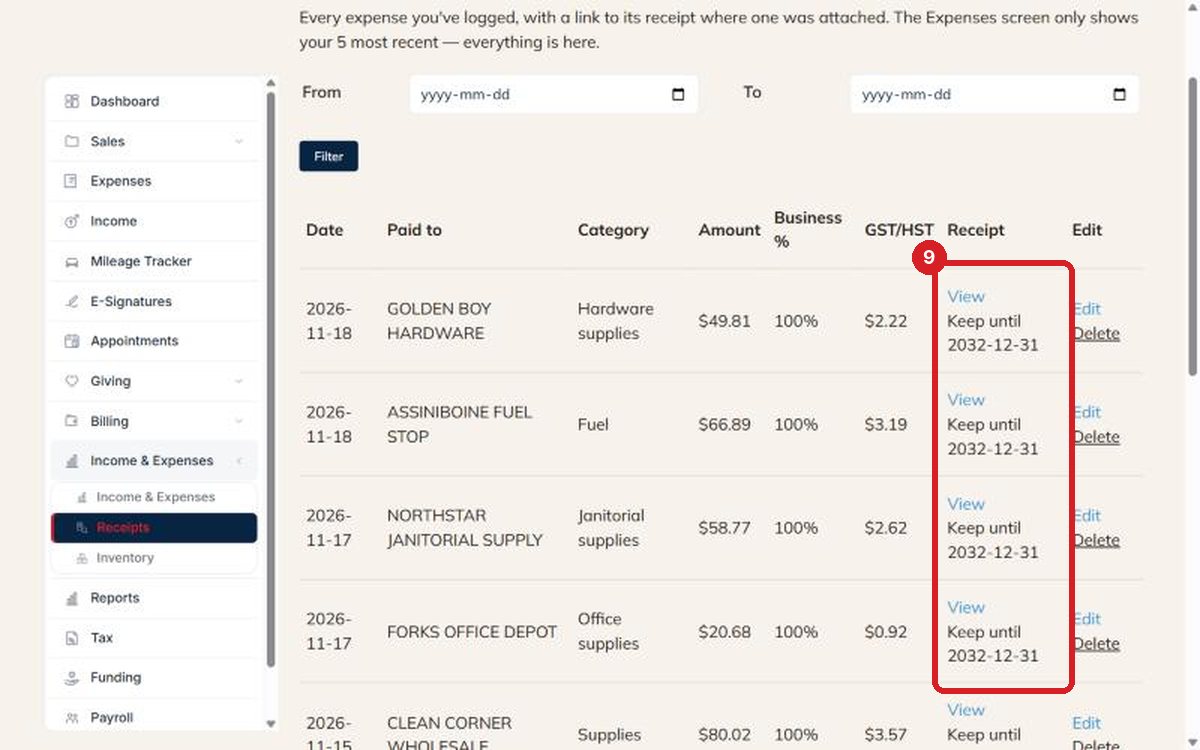
Every receipt stays with its photo.
Kept for six years, and easy to find by date or supplier.
Good to know
- Nothing is saved until you check it. Read receipts wait in your review list, even if you close the page.
- Likely duplicates are not saved from the table. If a receipt looks like one you already have (same amount, same date), open it with Review on its own to decide.
- Part personal, or needs a note? Untick it in the table and use Review on its own, where you can set the business share and add a note.
- On EasyBooks Receipts the table shows the supplier, date and amount only. Categories and sales tax come with the EasyBooks plans.
- Receipts in your email? Forward them to your EasyBooks address and they join the same review list.
More guides: EasyBooks help · EasyBooks Receipts · EasyBooks plans